
Article: The More Connection Cam Setup Guide
The More Connection Cam Setup Guide
More Connection Cam Official Instructional Video:
Please watch the below video for comprehensive instructions for how to setup and use your More Connection Cam.
Timestamps ⏰
0:00 - Introduction
0:19 - More Connection Cam Setup
1:58 - Connecting Your Phone to Your Laptop
2:56 - Apple Users Setup
3:57 - All Users Setup
4:43 - Camo Camera Run Through
5:15 - Video Framing Guide with Camo
5:39 - USB-C Chord Connection Stable Video Feed
6:37 - More Connected Calls: Eye-to-Eye Video Calling
7:08 - User Checklist & Final Thoughts
Smartphone-Webcam Applications & Setup Guides for All Users
• Camo Camera: https://reincubate.com/camo/#downloads
- Setup Guide: LINK
• IriunWebcam: https://iriun.com/
- Setup Guide: LINK
• OBS Virtual Camera: https://obsproject.com/download
- Setup Guide: LINK
• EpocCam: https://www.elgato.com/us/en/s/epoccam
- Setup Guide: LINK
• iVCam: https://www.e2esoft.com/ivcam/
- Setup Guide: LINK
• DroidCam: https://www.dev47apps.com/
- Setup Guide: LINK
• NeuralCam Live: https://neural.cam/
- Setup Video: LINK
For Apple Users
Simply update your IOS to IOS Ventura or later (on both your phone and laptop), and switch on the continuity camera function in your iPhone's settings.
• Apple Continuity Camera Setup Guide: LINK
Additional Guidance
Problems Detecting Phone on Web Browser Video Calls:
If for some reason your phone is not being detected by your Web-Browser-Based video calling application (Teams, Zoom, Google Meet, etc.) this is likely due to your browser's specific current settings, with regard to camera permissions. Please check your internet browser's privacy and security settings to fix this. These settings will be different for every browser.
• Google Chrome & Microsoft Edge Browser Help Article: LINK
Generally, we have found that the webcam is detected by browser-based video calling apps when using the Camo Camera application.
Problems Detecting Phone as a Webcam on Work Laptops:
Please ensure with your administrator that the application you are using to link your phone as a webcam with your laptop (Camo, Iriun Webcam, EpocCam, etc.)is approved for use on your work laptop by your company's IT department or administrator, before use of the More Connection Cam.
Having a More Connected Call: Eye-To-Eye Connection Calls
To optimize connection in a one-on-one video call setting so that both users are able to see eye-to-eye on video calls as if they were in a face-to-face environment, both users need to independently setup their More Connection Cams using the above instructional guidance.
General More Connection Cam Setup Guidance
- Turn the brightness all the way up on your computer screen
- Make sure to turn off Portrait Orientation-Lock on your phone, so that when you turn the phone horizontally, the video also flips horizontally
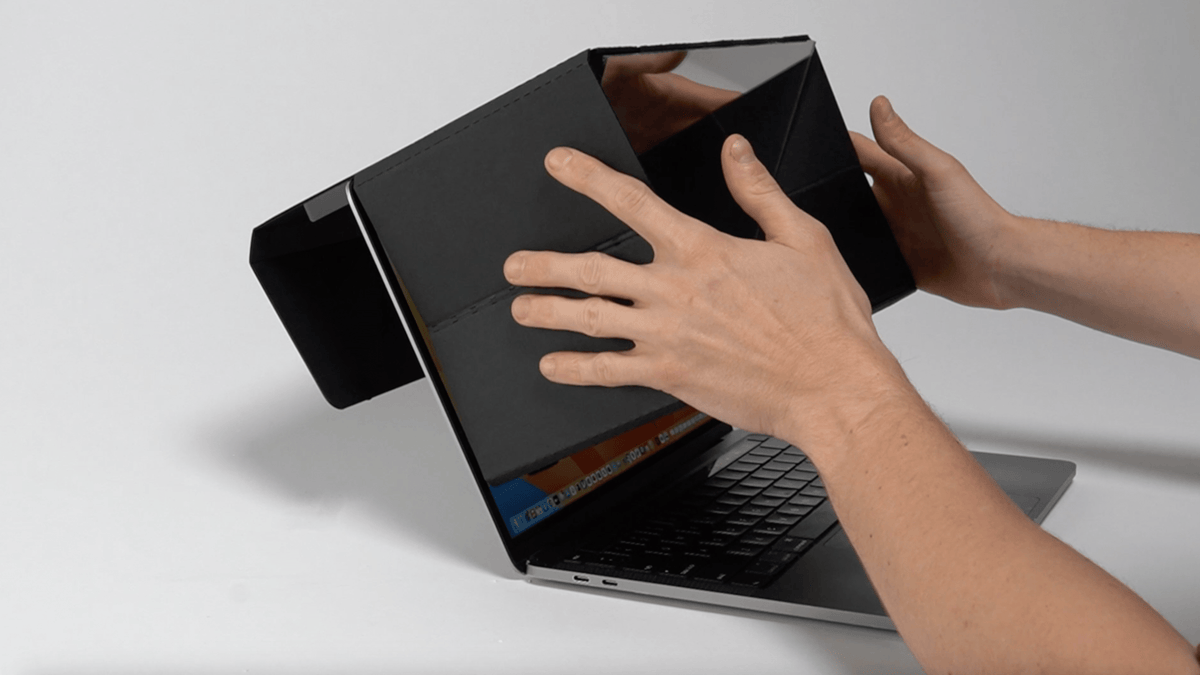
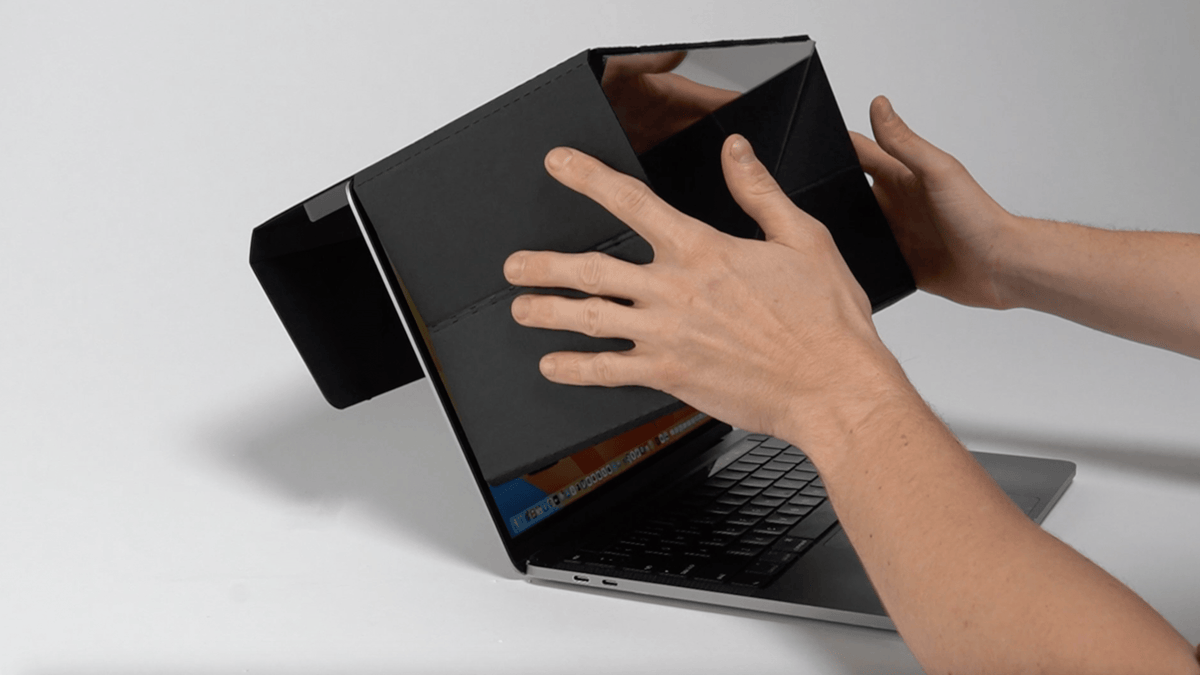
- Open the More Connect Cam, let the mirror drop down, and place the top panel of it over the top edge of your laptop screen, so that the top edge fits between the latches
- Slide your phone camera-side up into the bottom strap, position the camera in the camera-slot in the bottom panel, and adjust as needed to make sure the sides of the bottom panel aren't showing on the video feed and that the camera is straight
- Position your video call window center screen, and if your video is upside down, adjust your laptop screen all the way back (away from you) until the video turns right side up
- Recommendation for most stable phone-laptop-webcam connection is using the Camo Camera application and connecting your phone to your laptop via USB cable to reduce any delay in video feed
If there is any additional issue with setting up the More Connection Cam after trying all of the above, please contact info@moreconnection.co